
What are Folders?
Folders are an additional tool to help you organize your personal media. You can create folders, build nested structures, and move your media into them for easier access and management. Your folders are private and visible only to you. Currently there are no ways to share and add collaborators with folders.
In the My Media page, you’ll see a My folders section at the top left above the sorting filters. You will also see a Unfiled media folder. This folder is a default folder created automatically that shows all media items not yet organized into a folder. As you organize your media into folders, those items will no longer appear in Unfiled media.

How to Create a folder
-
- Go to the My Media page.
- To the right of the My folders section, click the plus (add) icon (+).

The ‘Create folder’ window opens. This window is where you will name the folder and choose its location.

- Enter a name (required).
- In the Choose Location section:
- If this is your first folder, the only available location is My Folders (your top-level folder).
- If you already have folders, you’ll see a list of your existing folders and subfolders. Select where you’d like to place the new folder by choosing a location from the list.
5. Click Create.
A confirmation message displays in a green box and your new folder appears in your My folders section.
Repeat the same steps to create more folders.
Each user can create up to 500 folders (including subfolders).
Create a subfolder
You can create folders up to three levels deep.
-
- To the right of the My folders section, click the add icon (+).
The ‘Create folder’ window opens.
-
- Enter a folder name (folder names must be unique within the same location, but you can reuse the same name in different branches).
- In the Choose folder location section, select the parent folder where you want to place your new folder.

-
-
- Click Save.
A confirmation message displays and your new subfolder appears inside the parent folder.
-
Add media to a folder
Option 1: Drag and drop
On the My Media page, drag and drop a single item into the desired folder. To move more than one item, select them using the check boxes, then drag and drop into the folder. A smaller thumbnail will appear when dragging to a folder. A green pop up window will appear to confirm the video has been moved into a folder.

Option 2: Use the three-dot menu
For a single item:
-
- Click the three-dot menu to the far right of the media item.
- From the menu, select Add to / Remove from folders.
 The ‘Add to/Remove from folders’ window opens.
-
- Select the desired folder(s) and click Update.

For multiple items:
-
- Select the items using the checkboxes.
- Click the More actions menu at the top of the page and select Add to folders.
The ‘Add to / Remove from folders’ window opens.
-
- Choose your folder(s) and click Update.
The items are added to the chosen folders.
Remove media from a folder
Single item
-
- Click the three-dot menu to the far right of the item.
- From the menu, select Add to / Remove from folders.

The ‘Add to / Remove from’ folders window opens.
-
- Uncheck the folder(s) you want to remove it from, and click Update.
 A confirmation message displays. Click Remove to confirm.
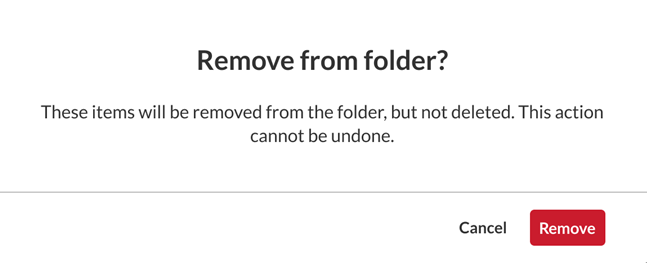
The item is removed from those folders.
For multiple items
-
- Use the checkboxes to select multiple items.
- Click the More actions menu at the top and select Remove from this folder.

The Add to/Remove from folders window opens.
The items are removed from those folders.
Delete a folder
Deleting a folder also deletes any subfolders inside it, but your media remain safe – it’s moved back to Unfiled media or to the parent folder, if applicable.
-
- In the My Folders section, find the folder you want to delete and click on it.
- At the top left of the page, you’ll see the folder’s location displayed as a navigation path (showing where you are inside your folder structure). This helps you confirm which folder you’re working in.
- Next to the folder name in this path, click the three-dot menu and select Delete folder.
 A confirmation message displays.
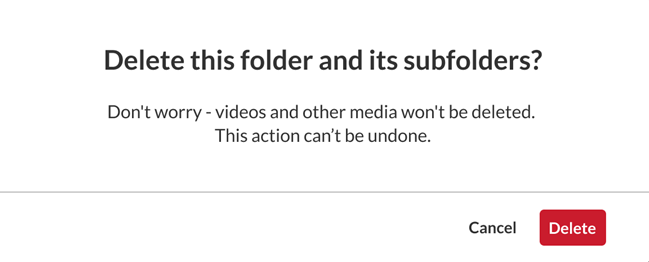
- Click Delete to continue.
Update a folder
You can rename a folder or move it to a different location in your folder structure. When you move a folder, all of its subfolders and media move with it.
-
- In the My Folders section, select the folder you want to update.
- At the top of the page, you’ll see the folder’s location displayed as a navigation path (showing where you are in your folder structure).
- Next to the folder name in this path, click the three-dot menu and select Update folder.
 The ‘Update folder’ window opens.
-
- In the Update folder window you can rename the folder, and / or move it to a different location.

- Click Update.
Search in folders
The usual search function will become context specific once you’ve navigated to a folder. It will act like a search for the specific folder you’re currently in instead of a global search of all your media. Use the search bar at the top of My Media to find media within the folder you’ve opened. All the usual filters, like media type, owner, etc. still work, and apply to the selected folder (and its subfolders).